

💡 Are you struggling to automate your trades on Exness using MT5? This guide will walk you through every step to install and run your Expert Advisor (EA) smoothly—even if you’re a complete beginner.
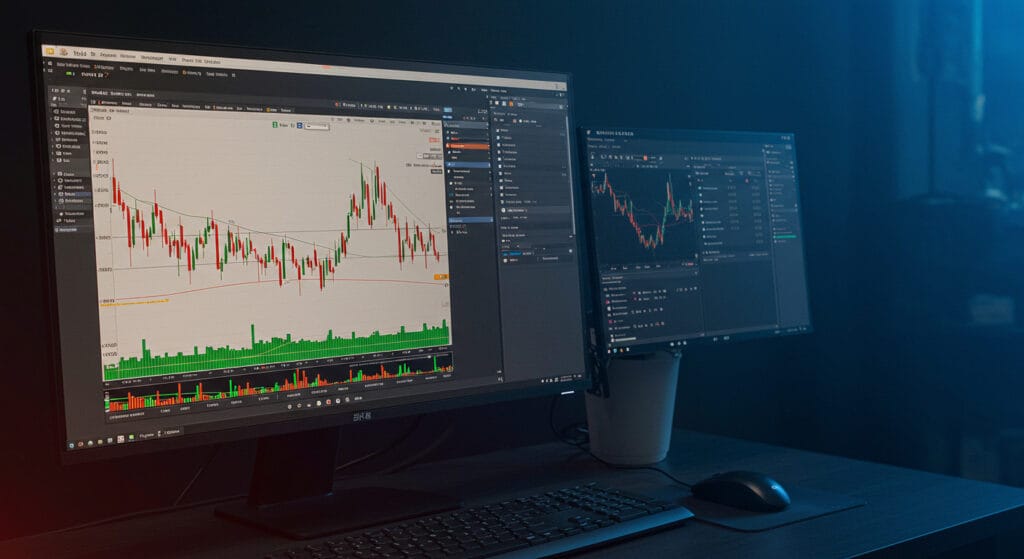
What is an EA (Expert Advisor) in Forex?
An Expert Advisor (EA) is a trading robot or script that automatically executes trades on your behalf, based on predefined rules. It helps eliminate emotional trading, optimize strategies, and save time. Most traders using Exness prefer installing their EAs on the MT5 (MetaTrader 5) platform due to its flexibility, powerful backtesting tools, and multi-asset support.
Why Use EA with Exness on MT5?
- ✅ 24/7 Trading Automation
- ✅ Backtest Strategies with Historical Data
- ✅ Compatible with Low-Latency VPS
- ✅ Ideal for Scalping, Arbitrage & Grid Strategies
💬 Tip: Exness supports both hedging and netting on MT5, making it an ideal broker for EA traders.
Step-by-Step: How to Install an EA on MT5 Exness
🛠 Step 1: Download the EA File
- Ensure your EA file is in
.ex5the MT5 format. - Get the EA from a trusted source (avoid cracked or unverified files).
🧭 Step 2: Open MT5 Trading Platform
- Log in to your Exness account on MT5.
- Navigate to
File > Open Data Folder.
📁 Step 3: Locate the “Experts” Folder
- Inside the Data Folder:
MQL5 > Experts - Paste the EA
.ex5file into this folder.
🔁 Step 4: Restart MT5
- Close and reopen MT5 to load the new EA.
⚙️ Step 5: Attach EA to a Chart
- Open the chart of the currency pair you want.
- Drag your EA from the Navigator panel onto the chart.
📌 Step 6: Enable AutoTrading
- Make sure the AutoTrading button (top of MT5) is turned ON.
- Check the “Allow Algo Trading” box when prompted.
✅ Step 7: Set EA Parameters
- Configure settings like lot size, stop loss, take profit, etc.
- Save your presets if needed.
⚠️ Make sure your EA is compatible with your Exness account type (Standard, Pro, Raw Spread, etc.) for optimal performance.
Common Errors & How to Fix Them
| Error | Cause | Solution |
|---|---|---|
| EA not showing | Incorrect folder | Place in MQL5/Experts |
| EA not trading | AutoTrading disabled | Enable AutoTrading |
| Invalid parameters | Wrong input format | Double-check EA settings |
Recommended EAs for Exness MT5
- Scalper Pro – Ideal for volatile pairs like GBP/JPY
- Grid Trader X—For sideways markets
- Trend Catcher EA—Great for long-term traders
(Only use with reliable backtesting results.)
Final Tips Before Running Your EA
- 🧪 Backtest first using the MT5 Strategy Tester.
- 🖥 Use a VPS for stable 24/7 operation.
- 📊 Monitor performance daily and update parameters regularly.
- 🔒 Secure your credentials to avoid unauthorized access.
Ready to Automate Your Trading on Exness?
Installing an EA on MT5 is easier than most people think. With this guide, you can confidently automate your strategies and scale your trading results—faster and smarter.
👉 Have questions or need EA recommendations? Reach out at admin@tradeonboard.com